

Introducing Geo Exclusion for NymVPN
Route traffic for selected regions outside the VPN tunnel, so local apps work at full speed while everything else stays protected

Share
If you live in a country that censors the internet, you know the other problem: Your banking app won't open because the connection comes from abroad. A government portal times out. Local news is suddenly blocked. These services expect a local connection, and a VPN gives them a foreign one.
The usual workaround is to disconnect. That fixes the local service, but it leaves you unprotected everywhere.
Geo Exclusion on NymVPN gives you a different route. Traffic to a selected region leaves the VPN tunnel and connects directly at full local speed, while everything else stays inside the tunnel. You keep protection where you need it and lose the friction where you don't want it.
Important to know about Geo Exclusion
- It's a beta feature and still in active development
- This is an advanced setting that requires configuring a proxy on your device or app outside of NymVPN
- It requires that your browser, app, or device has SOCKS5 proxy support
- It's currently only available for IPs in China, with more countries to come
- It's best used for browsers on desktop macOS, Windows, or Linux
- It's not yet available on iOS
How Geo Exclusion works
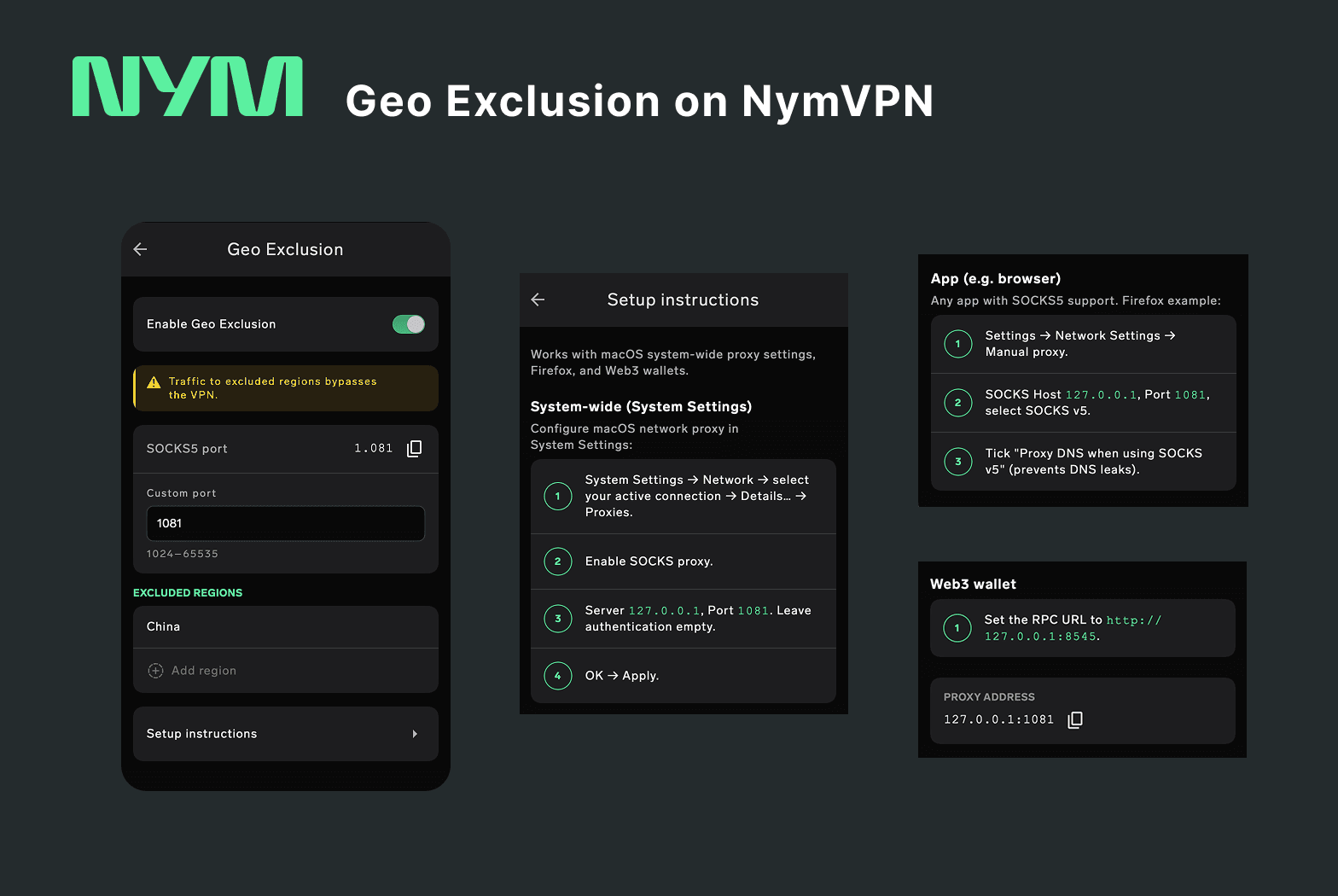
Inside the app, two things change when you switch it on.
-
NymVPN starts a local SOCKS5 proxy and places it outside the VPN tunnel. That is what lets you connect directly while the VPN is running.
-
Any web request you point at that proxy is sorted by destination: excluded regions go direct, everything else goes through the VPN tunnel.
The VPN tunnel itself doesn't change, and neither does anything you haven't pointed at the proxy. That is why setup takes two steps: the switch prepares the route, pointing an app at it puts traffic on it.
This is split tunneling applied to a region rather than an app. Split tunneling sends a whole app outside the tunnel; Geo Exclusion divides one app's traffic by destination. That is what makes it work for a web browser, where a few destinations are local and most are not.
The app lists the excluded regions available and how many IP ranges each covers, so you can see the scope of what leaves the tunnel.
Getting it working takes 3 steps
First, NymVPN needs to be connected: the SOCKS5 proxy doesn't run without it. Then two things have to happen:
- Connect NymVPN normally. You need an active NymVPN connection running.
- Turn on Geo Exclusion. Enable Geo Exclusion in NymVPN Settings and copy the SOCKS5 port (1081) and address (127.0.0.1) listed in the app.
- Set up the proxy in your browser. Enter that port and address in your browser's proxy settings.
The toggle alone changes nothing with (1) and (2). Traffic only leaves the tunnel once something points at the proxy.
Step 1: Turning on Geo Exclusion and copying the port
Geo Exclusion is off until you enable it.
- Open Settings in NymVPN.
- Click Geo Exclusion, directly below split tunneling.
- Toggle on Enable Geo Exclusion.
- Copy the SOCKS5 port (1081) and address (127.0.0.1) shown in that section.
⚠️ Copy these values rather than typing them. If you use a Chinese, Japanese, or Korean input method, typing 127.0.0.1 can produce full-width punctuation — 127。0。0。1 — which looks correct but will not work. The same applies to the digits in the port.
Step 2: Setting up your browser
Browser | Own SOCKS5 settings | What to do |
|---|---|---|
Firefox | Yes | Configure it directly, see below |
Mullvad Browser | Yes | Configure it directly, see below. It will not pick up a system proxy |
Chrome, Edge, Brave | No | Use the system proxy: fine on macOS, needs a third-party client on Windows |
Safari | No | Use the system proxy on macOS, or third-party extension on other OS |
Firefox and Mullvad Browser are the two to reach for. Both can be pointed at a SOCKS5 proxy in their own settings, so neither depends on your OS supporting one. Mullvad Browser is a privacy-hardened build of Firefox, so the steps below apply to both.
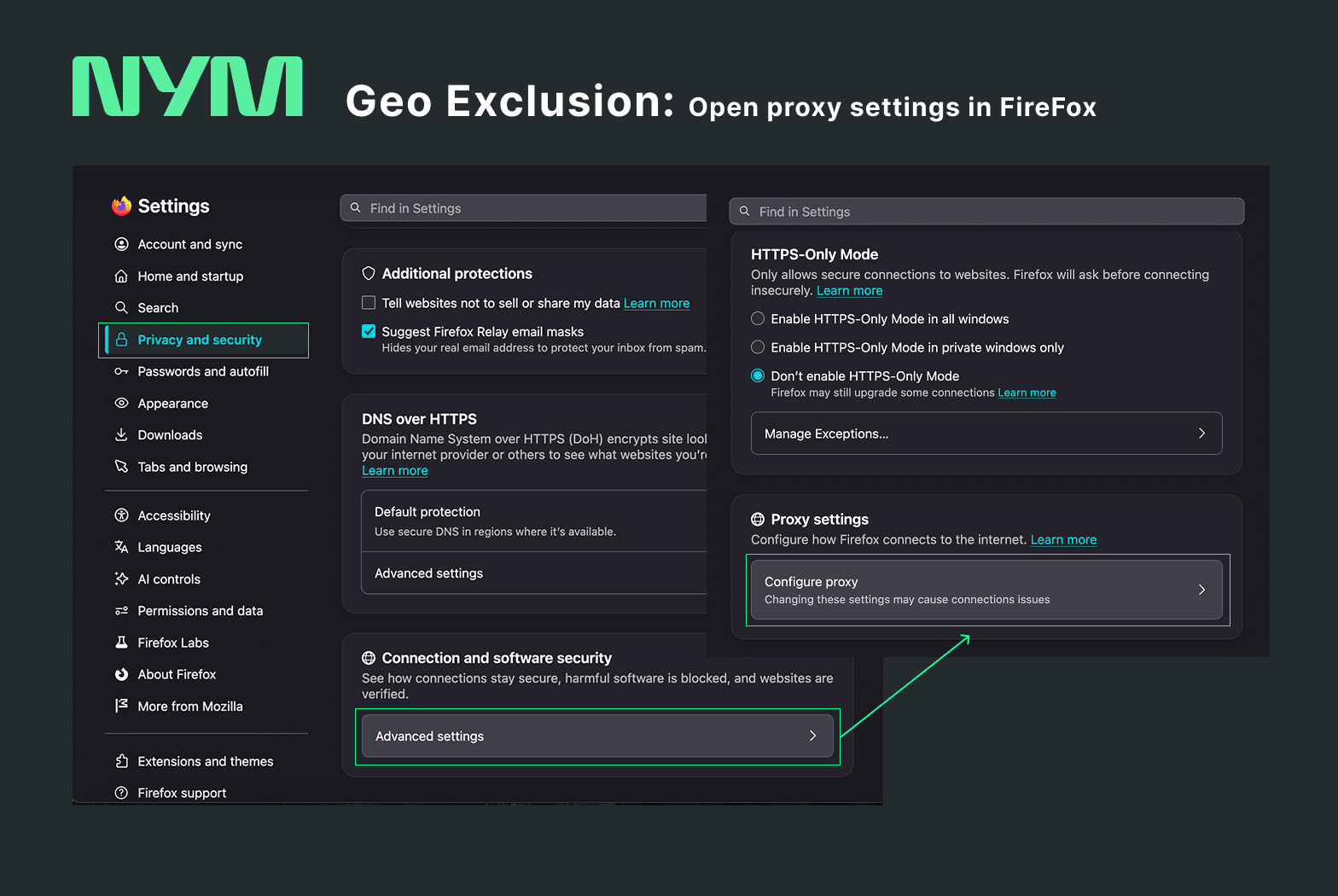
- Open Settings and search
proxy. Or navigate there: Privacy and security → Advanced settings → Configure proxy. - Choose Manual, not Automatic proxy configuration URL.
- Find the SOCKS Host row. Paste
127.0.0.1into the wide box beside that label — the box has no placeholder text, so it looks blank and unlabelled. - Paste your port
1081into the narrow Port box next to it. - Select SOCKS v5. Firefox offers SOCKS v4 as well, but only v5 works here.
- Below, check Proxy DNS when using SOCKS v5. This stops DNS lookups leaking outside the proxy.
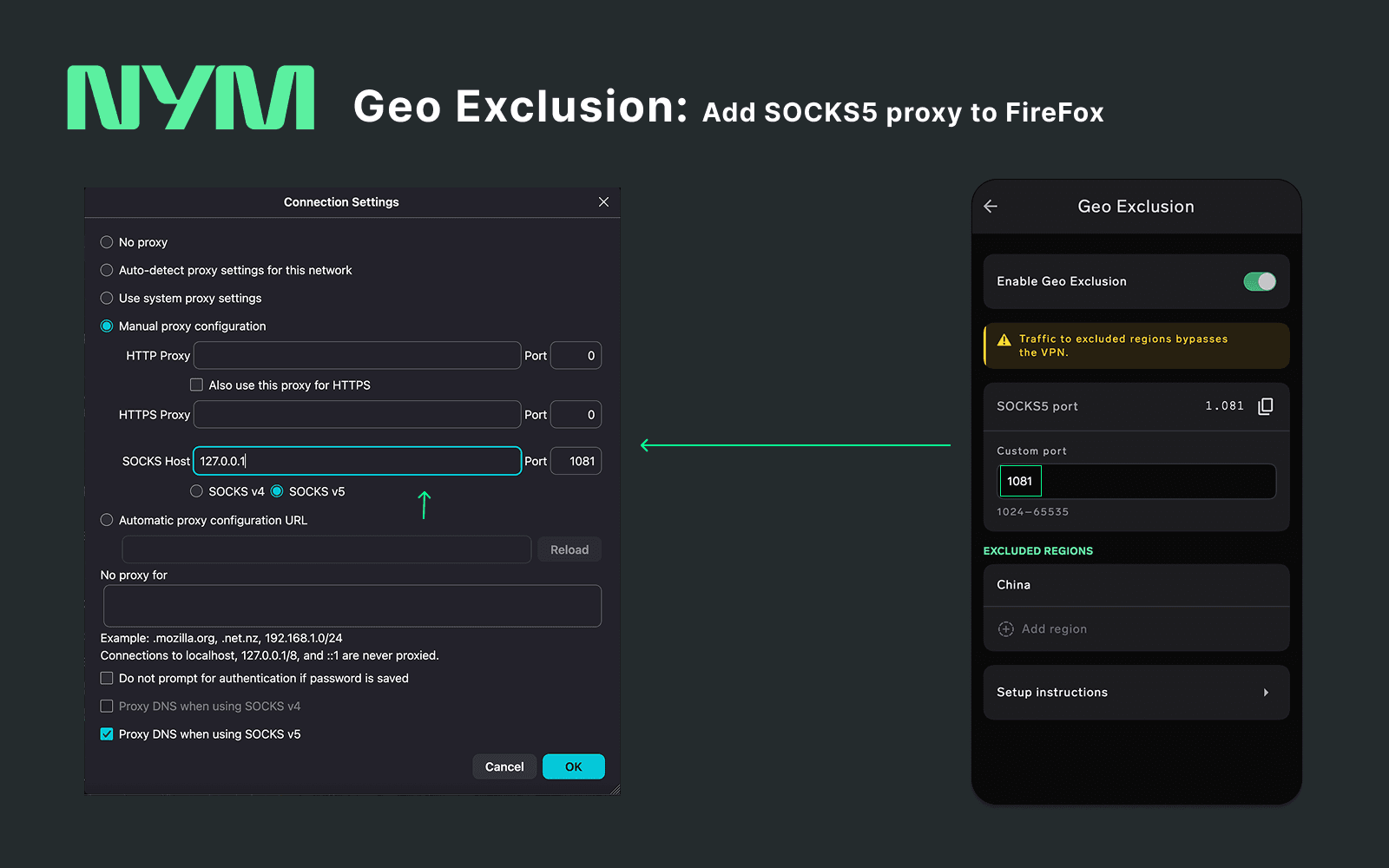
⚠️ Leave the HTTP Proxy and HTTPS Proxy rows empty. The dialog stacks three identical-looking host and port rows. Only the SOCKS one applies. Filling in the wrong row will give you a browser that quietly fails to load anything, with no error explaining why.
On Android, use split tunneling instead
Android has no system-wide SOCKS5 setting, and mobile browsers can't be pointed at a proxy. A few apps support SOCKS5 in their own settings, Telegram among them under Data and Storage, but for most cases NymVPN's split tunneling is the better tool. It needs no proxy at all:
- Open Settings in NymVPN and go to Split tunneling.
- Search for the app you want to connect directly.
- Set it to Direct connection.
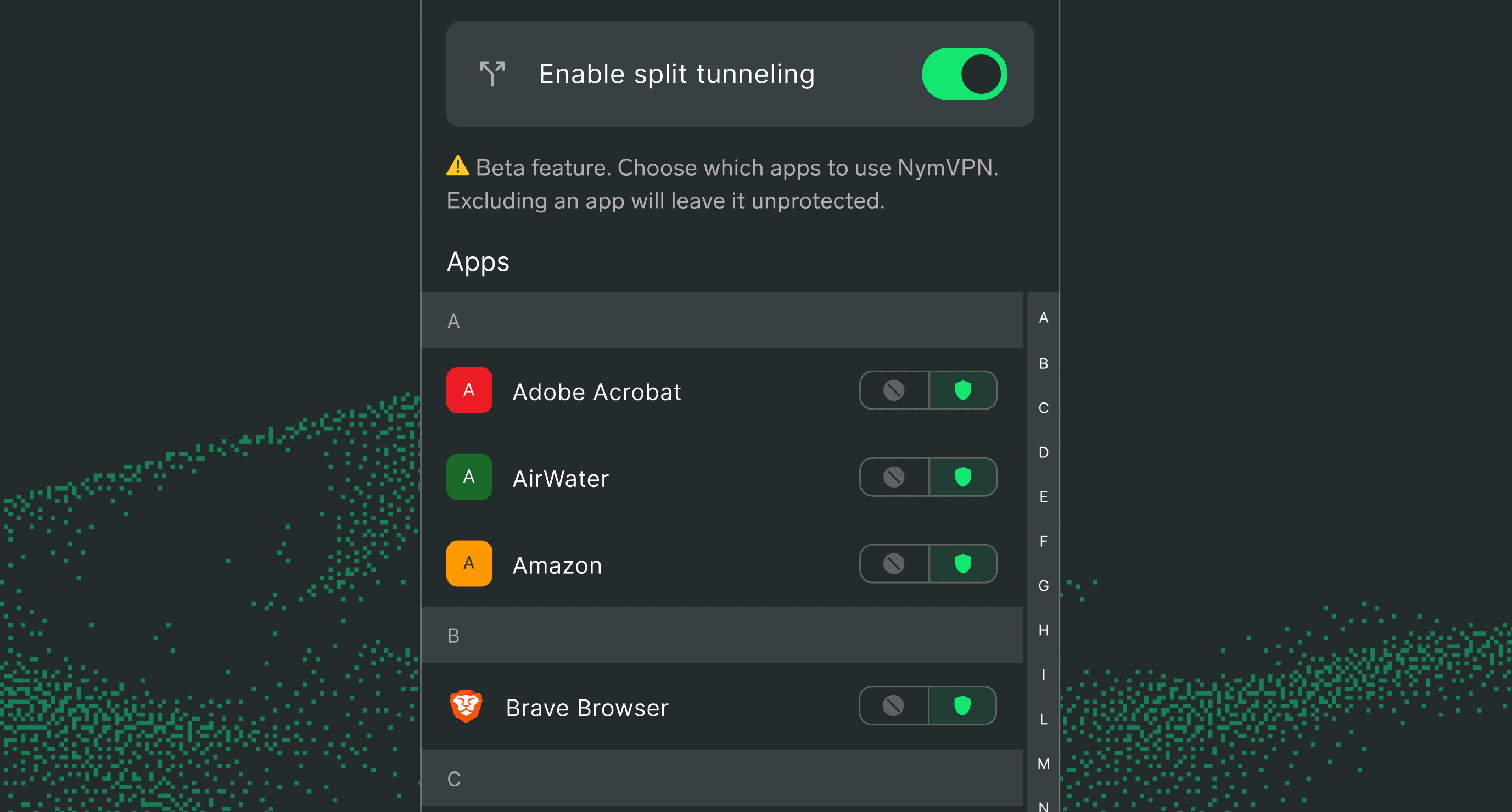
Split tunneling sends a whole app outside the tunnel; Geo Exclusion divides one app's traffic by destination, for when a single app talks to both local and international services.
Checking that it's working
One IP lookup won't tell you. A local site reporting your real address is equally consistent with Geo Exclusion working and with the VPN having dropped. Check two places at once.
Open two IP-checking services in the same browser: one hosted inside the excluded region, one outside.
- Inside the region: your real local IP address. That traffic is going direct.
- Outside: a NymVPN exit address. Your protected traffic is still in the tunnel.
The pair is the confirmation. For a sharper signal, check both before configuring the proxy too: beforehand both should report the NymVPN address, and the local service will probably be slow. Afterwards only the local reading should change.
What Geo Exclusion does not do
This matters more than the setup.
Traffic to excluded regions bypasses the VPN. It is not protected, and your internet provider sees the metadata exactly as it would if the VPN were off. That is the point: those connections have to look local to work. It also means your usual protection doesn't extend to them.
So use it deliberately. Turn it on because specific local services need to work, know those connections are exposed, and keep anything you want protected on the other side of the tunnel. Where exposure carries real risk, don't route it through an excluded range.
It is also a beta, currently on one region, with per-app setup on most platforms. So it's not yet set-and-forget.
Local access shouldn't cost you protection
Every privacy tool runs into the same trade: the more thoroughly it protects you, the more of ordinary life it breaks. People respond by switching it off, which is the worst outcome available. We designed Geo Exclusion so the answer to a bank that won't load is a setting, not a disconnection.
Geo Exclusion and SOCKS5 proxies: FAQs
Try again before changing anything. The connection to the Nym network is established when the first request arrives, not when you switch the feature on, and on a restricted network that can take several attempts. Reload a few times and give it a minute. If it still fails, reconnect NymVPN: switching Geo Exclusion on while the VPN is already connected can need a reconnect before the new routing takes effect.
Suspect DNS. When lookups resolve through the tunnel, a local domain can return an address hosted overseas, which then falls outside the excluded ranges and travels through the tunnel exactly as designed. The Proxy DNS when using SOCKS v5 setting prevents that.
It is the loopback address, and it always means "this device." The field is called Server on macOS and SOCKS Host in Firefox, but it points nowhere on the internet: it points back at NymVPN running on your own machine. The port then says which program to reach, and NymVPN's SOCKS5 proxy is the one listening on it.
No. That refers to sites you visit at those addresses, not to the proxy itself, so entering 127.0.0.1 as the SOCKS Host is correct. Leave No proxy for empty, though: anything listed there skips the proxy and travels through the VPN tunnel instead, which is the opposite of what you want.
The proxy stops running with it, and anything you pointed at that proxy will stop connecting until you turn the feature back on.
No. It keeps its own connection settings and will not inherit a system-wide proxy, so it has to be configured in the browser even if you have set one up for the rest of your device.
On macOS, yes: open System Settings, then Network, select Details beside your active connection, click Proxies, turn on SOCKS5 proxy, and enter 127.0.0.1 with your port, leaving the authentication fields blank. That covers every app, including Safari, Chrome, Edge, and Brave.
Windows and Linux have no usable system-wide SOCKS5 setting: Windows needs a third-party proxy client, and on Linux proxychains-ng will launch individual programs through the proxy. On both, configuring Firefox directly is simpler and costs little.
About the authors
Nym Core Team
Nym teamTable of contents
Keep Reading...
Split tunneling with a VPN
Split tunneling gives users flexibility and efficiency when using a VPN, but with security risks. Mixnets provide a third option.
Introducing Mixnet Tuning in NymVPN
How NymVPN's new controls let you balance speed and anonymity on the Noise Generating Mixnet
Nym’s roadmap for 2026: Unlocking the power of decentralization
Revitalizing the $NYM token, improving the mixnet, and taking decentralization to the limit
Nym is building a private internet without walls
NymVPN’s 2026 roadmap for censorship resistance and resilient online privacy for all